Reconnecting to Running Workflows
Workflow execution in HPCBOX is persistent — a running workflow continues even if you close the GUI or your remote desktop session is interrupted. When you reopen the GUI, it detects any runs that were active in previous sessions and offers to reconnect.
How It Works
When you start a workflow, HPCBOX creates a run directory under ~/.drizti/hpcbox/runs/ on the login node. The workflow executor writes its status to files in this directory throughout execution, so the state is always recoverable regardless of whether the GUI is open.
When the GUI starts, it scans for run directories from previous sessions and shows a reconnect dialog if any are found.
Reconnecting at Startup
If workflows were running when you last closed the GUI, a dialog appears automatically on the next startup listing all active runs.
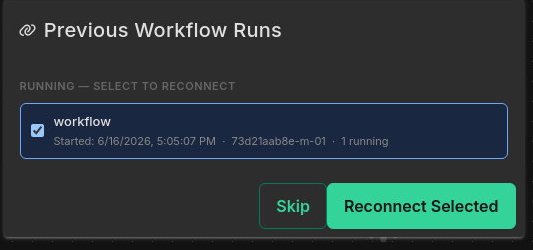
Each row shows:
- Workflow name — the name of the
.hpcboxfile - Started — when the run began
- Host — the login node where the executor is running
- Step summary — how many steps are completed, running, or pending
Select the runs you want to reconnect to and click Reconnect Selected. Click Skip to dismiss the dialog and reconnect later using the button in the tab bar.
Reconnecting Manually
A link icon button appears in the workflow tab bar whenever there are runs available to reconnect to. Click it to open the same reconnect dialog at any time.
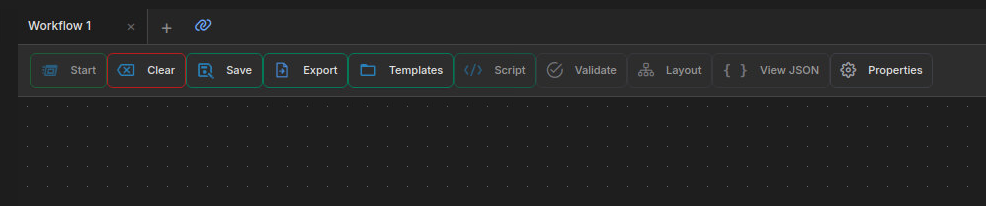
The number shown in the tooltip indicates how many runs are available. The button disappears once all runs have been reconnected or cleared.
Different Login Nodes
On clusters with multiple login nodes, a workflow started on login01 cannot be reconnected from login02 — Unix sockets are local to the node that created them.
If you reconnect from a different login node, HPCBOX detects this automatically and shows a warning on the affected rows in the reconnect dialog.
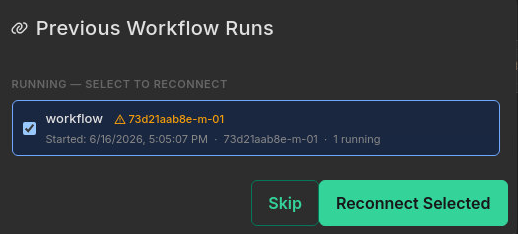
After reconnecting, the canvas shows the last recorded state from the status file — steps that were running when you disconnected are shown as running. Live updates are not available, but you can use the Queue tab to monitor or cancel the underlying HPC jobs submitted by each step.
Finished Runs Awaiting Cleanup
Occasionally a run directory may be left behind even after a workflow completes. This happens when the executor is killed before it can finalize its state (for example, if the login node is rebooted or the job is killed by the scheduler at the OS level). These runs appear in a separate Finished section of the reconnect dialog.
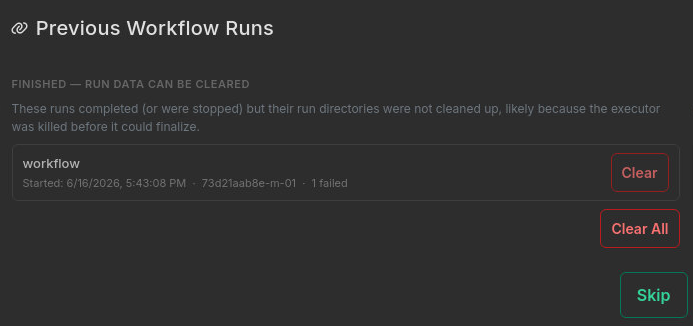
You can clear individual runs using the Clear button next to each entry, or remove all of them at once with Clear All. Clearing a run removes its directory from ~/.drizti/hpcbox/runs/ — this does not affect any HPC jobs that were submitted during the run.
Runs that completed successfully are cleaned up automatically and never appear in this list.