Setting Up Shared Context
This guide walks you through enabling shared team context for the AI Assistant, so team members can search across each other's saved workflow history.
Shared context requires a directory on a shared filesystem (e.g., NFS, Lustre, or a shared home directory) that all team members can read and write to. Ask your cluster administrator to set this up if it doesn't exist yet — see the Administration Guide.
Prerequisites
- HPCBOX ClusterApp with the AI Assistant feature enabled
- A shared directory accessible to all team members (e.g.,
/shared/hpcbox/agent-context/) - Read and write permissions on the shared directory for all participating users
Enabling Shared Context
- Open the AI Assistant panel in the workflow editor
- Scroll down to the Shared Context section in the settings area
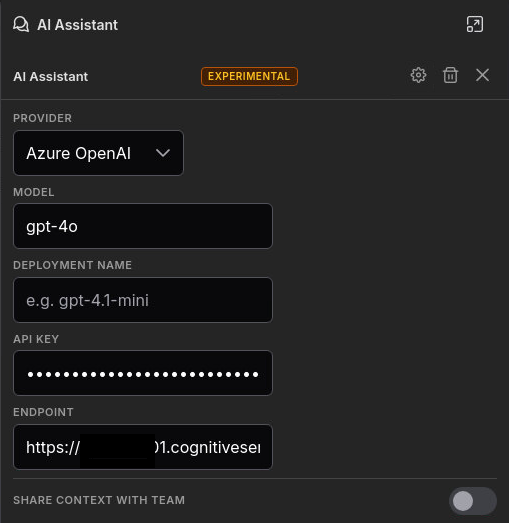
- Toggle Share Context to the on position
- The Shared directory field auto-populates with the default path (
/opt/drz/apps/hpcbox/shared/agent/context/). If your administrator has set up a different shared directory, click Browse and select it.
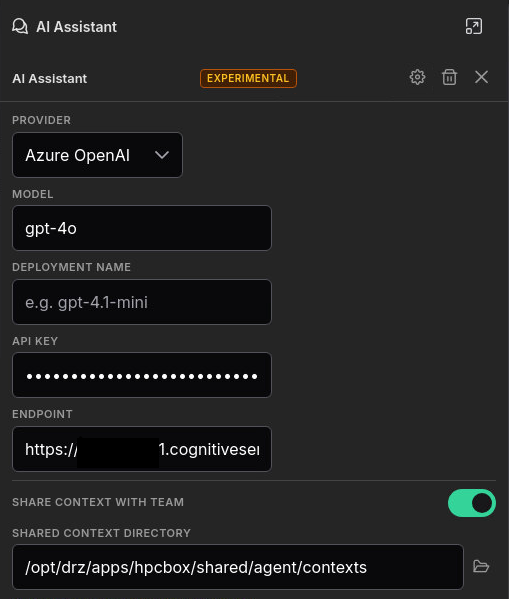
- Click Reconnect to apply the changes
If you change the shared context settings while already connected, an amber hint appears reminding you to reconnect. The new settings take effect after reconnecting.

Syncing Team Memories
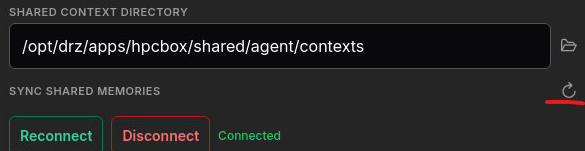
When the assistant connects with shared context enabled, it automatically imports new entries from other team members. You can also trigger a sync manually:
- Click the refresh button next to the Shared Context toggle
- The assistant syncs and reports how many new entries were imported in the chat
Searching Team Context
Once shared context is enabled and synced, the assistant automatically includes team members' entries when searching memory. Simply ask about other users' work:
"Has anyone configured an OpenFOAM workflow for the intake manifold project?"
"What core counts has the team been using for ANSYS Fluent simulations?"
The assistant searches both your local memories and imported team entries, and indicates which user originally saved each result.
Monthly Rotation
Shared context files are automatically rotated at the start of each month. The previous month's file is compressed (gzip) and archived. This keeps the shared directory size manageable over time.
Archived files are not searched during sync — only the current month's active context memory files are processed.
Troubleshooting
Shared context not working after toggling
Make sure you clicked Reconnect (or restarted the agent) after changing the settings. The shared context configuration is applied when the agent starts.
Cannot see other users' memories
- Verify the shared directory path is the same for all users
- Check that you have read permissions on other users' shared memory files.
- Click the sync refresh button and check the chat message for import count
- If "0 new entries imported", other users may not have saved any memories yet, or their shared context may not be readable
Directory does not exist
The shared directory is not created automatically. Ask your administrator to create it with appropriate permissions. See the Administration Guide for recommended setup.